Why Your Phone Loses More Battery in Your Pocket Than on Your Desk
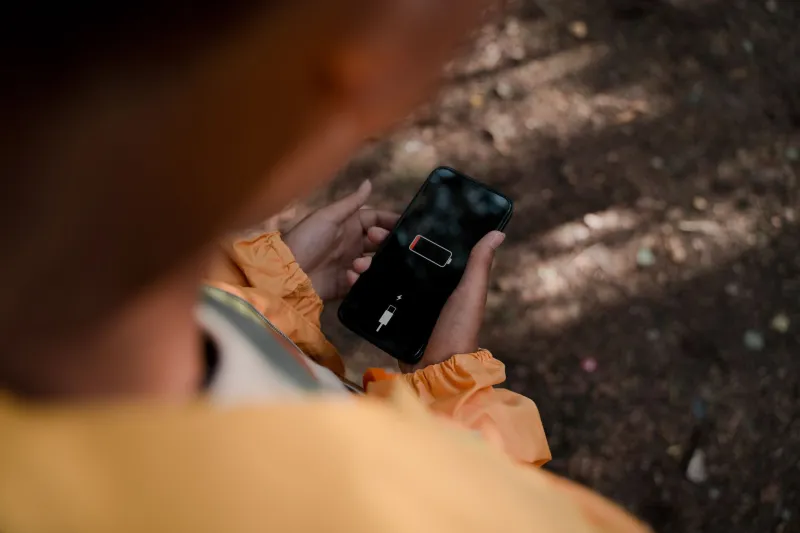
You pull your phone out after a two-hour meeting, glance at the battery percentage, and do a double take. It dropped 18% — and you didn't even touch the thing. Meanwhile, when you leave it face-up on your desk for the same two hours, it barely budges past 4%. What gives?
This isn't just bad luck or a fluke. There's a whole set of behind-the-scenes processes that kick into overdrive the moment your phone disappears into your pocket or bag. We dug into the culprits, ran some informal tests with different case types and pocket positions, and came out the other side with some genuinely useful answers.
The Proximity Sensor Problem Nobody Talks About
Here's one that surprises most people: your proximity sensor — the little component that turns your screen off when you hold the phone to your ear — doesn't always behave itself when you're not on a call.
In certain phones, especially older Android models, this sensor stays partially active even during standby. When it's nestled against your thigh or shoved at the bottom of a tote bag, it can trigger repeatedly, sending signals that interrupt normal sleep cycles. Every micro-interruption burns a tiny bit of power. Do that a few hundred times over two hours, and it starts to add up.
The fix isn't glamorous: check your phone's sensor settings or grab a sensor management app that lets you put limits on background sensor activity. It won't transform your battery life overnight, but it closes one of the quieter leaks.
Fabric Is Basically a Signal Scrambler
Denim, canvas, synthetic blends — they all interfere with wireless signal transmission to varying degrees. When your phone is in your pocket, it's constantly trying to maintain connections to cell towers, Wi-Fi networks, and Bluetooth devices. Fabric creates enough of a barrier that your phone has to work harder to hold those connections.
This is especially brutal in areas with spotty coverage. If you're commuting through a subway tunnel or sitting in a building with weak signal, your phone is already straining. Add a layer of thick denim and it ramps up transmission power even further — which is one of the biggest single drains on your battery that most people never think about.
Switching your phone to airplane mode during a long commute where you don't need connectivity can cut idle drain dramatically. Or at minimum, toggle off Wi-Fi when you're not near a network you actually use. Your phone will stop scanning constantly and settle down.
Case Material Matters More Than You Think
We tested drain rates with three different case types over a controlled two-hour pocket period: a thin TPU case, a thick rubberized silicone case, and a leather wallet-style case. Same phone, same apps, same signal environment.
The results were pretty telling. The thick silicone case ran warmest — and heat is a known accelerant for battery drain. The leather wallet case, when positioned with the phone screen-side in, actually blocked the proximity sensor more effectively, reducing erratic wake cycles. The thin TPU case was the most neutral of the bunch.
Bottom line: if phantom drain is something you're actively fighting, bulkier insulating cases can trap heat in your pocket and make things worse. A slim, breathable case wins here — not for aesthetics, but for thermal management.
Pocket Position Is a Real Variable
Front pocket versus back pocket versus jacket pocket — it sounds like a trivial distinction, but it's not. Back pockets apply more consistent pressure to the screen area, which can trigger pressure-sensitive displays and wake the screen unintentionally. If you've ever pulled your phone out and found it on a random app you didn't open, that's likely what happened.
Jacket breast pockets are actually the best option from a battery perspective: less body heat transfer, less physical pressure, and depending on the jacket material, less signal interference than denim. Front pants pockets are a reasonable second choice. Back pockets are the worst offender for accidental screen activation.
Background App Behavior in Standby
This one isn't pocket-specific, but it compounds everything else. Apps that use location services, refresh content in the background, or maintain persistent connections don't care whether your phone is in your hand or crammed in a gym bag. They're running either way.
The difference is that when you're actively using your phone, you're getting value from those processes. When it's idle, you're just burning power for nothing. Go into your settings and audit which apps have background refresh enabled. Be ruthless. Email, your calendar, maybe your maps app — those have a legitimate case. The seventh social media platform you check once a week does not.
Practical Moves for Your Daily Routine
So what does this all look like in practice? Here's a quick game plan for the average workday or commute:
- Before you pocket your phone: Drop the screen brightness, make sure Wi-Fi is off if you're not near a network, and check that background app refresh is limited to essentials.
- On the subway or in a dead zone: Airplane mode is your friend. You'll save more battery in thirty minutes underground than most battery-saving apps will save you all day.
- Choose your pocket wisely: Front pocket, slim case, and ideally a jacket pocket when you have the option.
- Check your sensor settings: If your phone's developer options or a third-party app let you manage sensor activity, it's worth five minutes to dial that in.
- Watch your case's heat signature: If your phone feels noticeably warm after sitting in your pocket, your case may be trapping heat. That warmth is battery life leaving the building.
Phantom drain isn't mysterious once you understand what's driving it. It's a combination of hardware behavior, environmental interference, and software that doesn't know when to quit. A few targeted adjustments and a smarter pocket strategy can genuinely move the needle — and keep your battery where you actually need it, not wasted on a phone that's just sitting there doing nothing.