Your Phone Is Bleeding Battery While You Sleep — Here's What's Actually Going On
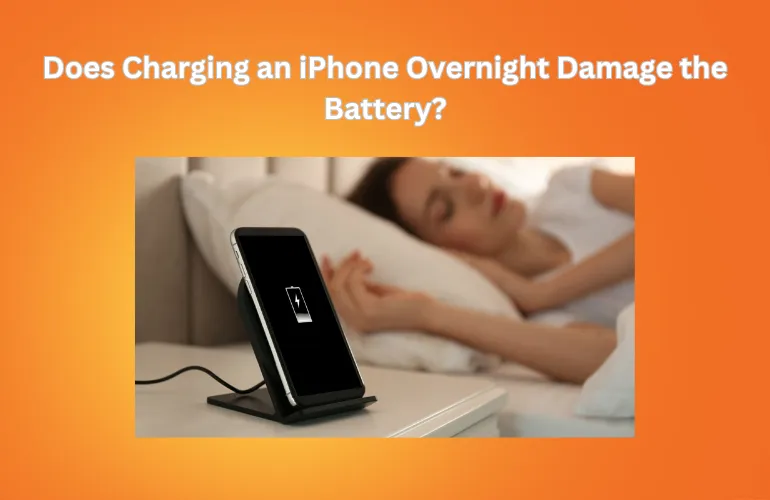
Photo: smartphone on nightstand charging overnight low battery, via www.mobileguruaustralia.com.au
There's a specific kind of frustration that comes with waking up to a half-drained phone. You didn't use it. You didn't get any calls. The screen was dark all night. And yet, somehow, your battery took a 20-point hit while you were getting your eight hours. Sound familiar?
This isn't just bad luck — it's a well-documented phenomenon called phantom drain, and it's one of the most overlooked battery killers in everyday smartphone use. The good news? Once you understand what's actually happening inside your phone while it sits on your nightstand, you can do something about it.
What Is Phantom Drain, Exactly?
Phantom drain refers to battery consumption that happens when your phone is idle — no active use, no screen on, no obvious reason for the power to be disappearing. It's caused by a combination of background app activity, system-level processes, and hardware features that never fully power down.
Think of your phone less like a light switch and more like a city that never fully sleeps. Even at 2 a.m., there are processes running maintenance routes, checking in with servers, refreshing data, and keeping certain radios alive — all drawing small but consistent amounts of power from your battery.
On both Android and iOS, the typical overnight drain for a modern smartphone should be somewhere between 2% and 5%. If you're losing more than that, something specific is to blame.
The Biggest Culprits Behind Overnight Drain
Background App Refresh
This is the number one offender on most phones. Apps like social media platforms, news readers, email clients, and even food delivery apps are configured by default to refresh their content in the background — constantly pulling data so they can show you "fresh" information the moment you open them.
On an iPhone, you can find this under Settings > General > Background App Refresh. On Android, it lives under Settings > Apps, where you can restrict background activity on a per-app basis. Go through your list and ask yourself: does this app actually need to refresh itself at 3 a.m.? For most of them, the answer is no.
Location Services Running 24/7
GPS and location-based services are among the most power-hungry features on your phone. Certain apps — weather apps, map services, fitness trackers — request "always on" location access, which means they're pinging your location even when you're not using them.
Review your location permissions regularly. Most apps only need location access "while using" the app, not all the time. This single change can meaningfully reduce overnight drain.
Push Email and Syncing
If you have multiple email accounts set up to push notifications in real time, your phone is essentially maintaining an open connection to those servers around the clock. Switching from push to fetch — where your phone checks for new mail on a schedule rather than continuously — can make a noticeable difference.
Rogue Apps and Battery Hogs
Sometimes one specific app goes haywire. It gets stuck in a loop, keeps the processor partially awake, or repeatedly attempts to sync data it can't reach. Both iOS and Android have built-in battery usage reports that show you exactly which apps consumed the most power over the last 24 hours or week.
On iPhone: Settings > Battery. On Android: Settings > Battery > Battery Usage. If an app you barely use is sitting near the top of that list, that's your culprit. Force-close it, check for updates, or delete it entirely.
How to Run a Proper Overnight Battery Audit
Don't just guess — run a structured test. Here's a simple process:
- Charge your phone to 100% before bed and note the exact time.
- Enable Airplane Mode for one night. This cuts all wireless radios — no cellular, no Wi-Fi, no Bluetooth. If your overnight drain drops dramatically, a wireless process is responsible.
- The next night, turn Airplane Mode off but close all apps manually before bed. If drain returns to normal, a specific app is the problem.
- Check your battery report both mornings and compare the numbers.
This process of elimination works surprisingly well and takes about two minutes of effort each night.
Accessories That Help Extend Standby Time
Software fixes go a long way, but hardware can give you an extra layer of protection — especially if you travel frequently or need your phone to survive through an emergency without a charger in sight.
Battery cases are one of the most practical investments for standby-time extension. A quality battery case can effectively double your phone's total capacity, meaning even with some background drain happening, you're starting from a much larger reservoir. Look for cases with passthrough charging so you can charge both the case and your phone simultaneously.
Portable power banks are another smart option for travelers. A compact 10,000mAh bank weighs almost nothing in a carry-on but can fully recharge most smartphones two to three times over — giving you real peace of mind on long flights or road trips where outlets aren't guaranteed.
Smart charging docks with battery health optimization features are also worth considering. Some models limit overnight charging to 80% to reduce chemical stress on your battery cells, which directly impacts long-term capacity retention. Less strain overnight means your battery holds a better charge for longer, month after month.
A Few Quick Wins Before Bed
If you want to make an immediate impact tonight without diving deep into settings, try these:
- Lower your screen timeout to the shortest setting you're comfortable with.
- Turn off Wi-Fi if you're not using it (your phone actively searches for networks even when idle).
- Enable Do Not Disturb — it won't stop drain on its own, but it prevents your screen from lighting up repeatedly from notifications.
- Drop your screen brightness before you put the phone down. Even at idle, display hardware can contribute to drain if the brightness is cranked up.
The Bottom Line
Losing 20% overnight isn't just annoying — it's a sign that your phone is working overtime while you're not watching. The combination of background apps, location services, and always-on sync features adds up faster than most people realize. A quick audit of your battery settings, combined with a few smart accessory choices, can get that overnight drain down to a fraction of what it currently is.
Your phone should be saving its energy for you — not burning it on tasks you never asked it to do.